
When building interfaces with AI-powered development tools, the quality of your instructions directly affects the results. A simple request such as “create a pricing section” can produce a starting point, but getting a specific layout, component arrangement, and visual structure often requires additional prompting.
This becomes repetitive when you are working on multiple pages or building different types of interfaces.
The ShadcnSpace Chrome Extension provides a way to start with an existing UI design instead of describing every element yourself. It connects the ShadcnSpace block library with AI development tools, allowing you to select a block and insert its associated prompt directly into the builder’s chat.
You can use this workflow with Lovable, v0, and Bolt.new without manually copying and pasting prompts between browser tabs.
This guide explains how the extension works, how to use it across these platforms, and how to get better results when generating interfaces for your projects.
What is the ShadcnSpace Chrome extension?
The ShadcnSpace Chrome Extension is a browser extension that makes the ShadcnSpace UI library accessible while you work with supported AI builders.
ShadcnSpace provides reusable UI blocks and components for building application interfaces. The extension brings these resources into your AI development workflow by providing a way to select a design and send its prepared prompt to the active AI builder.
For example, imagine you are developing a SaaS landing page and need a section that displays product features in a card-based layout. Rather than explaining the entire structure, you can browse the available ShadcnSpace blocks, select a suitable design, and insert its prompt into your AI builder.
The AI builder then uses that prompt along with your project context to generate the implementation.
How does the extension workflow work?
The workflow consists of four main actions:
- Open the extension: Launch ShadcnSpace from its toggle while working in a supported AI builder.
- Find a UI block: Browse the available designs and choose one that matches the section you want to build.
- Insert the prompt: Use the Insert into Chat action to send the selected block’s prompt to the AI builder.
- Generate and refine: Submit the prompt, inspect the generated interface, and request changes where necessary.
The extension handles the prompt transfer. Your AI builder remains responsible for generating and modifying the project code.
Install the ShadcnSpace Chrome Extension
Before using the extension, you need to add it to Google Chrome.
Follow these steps:
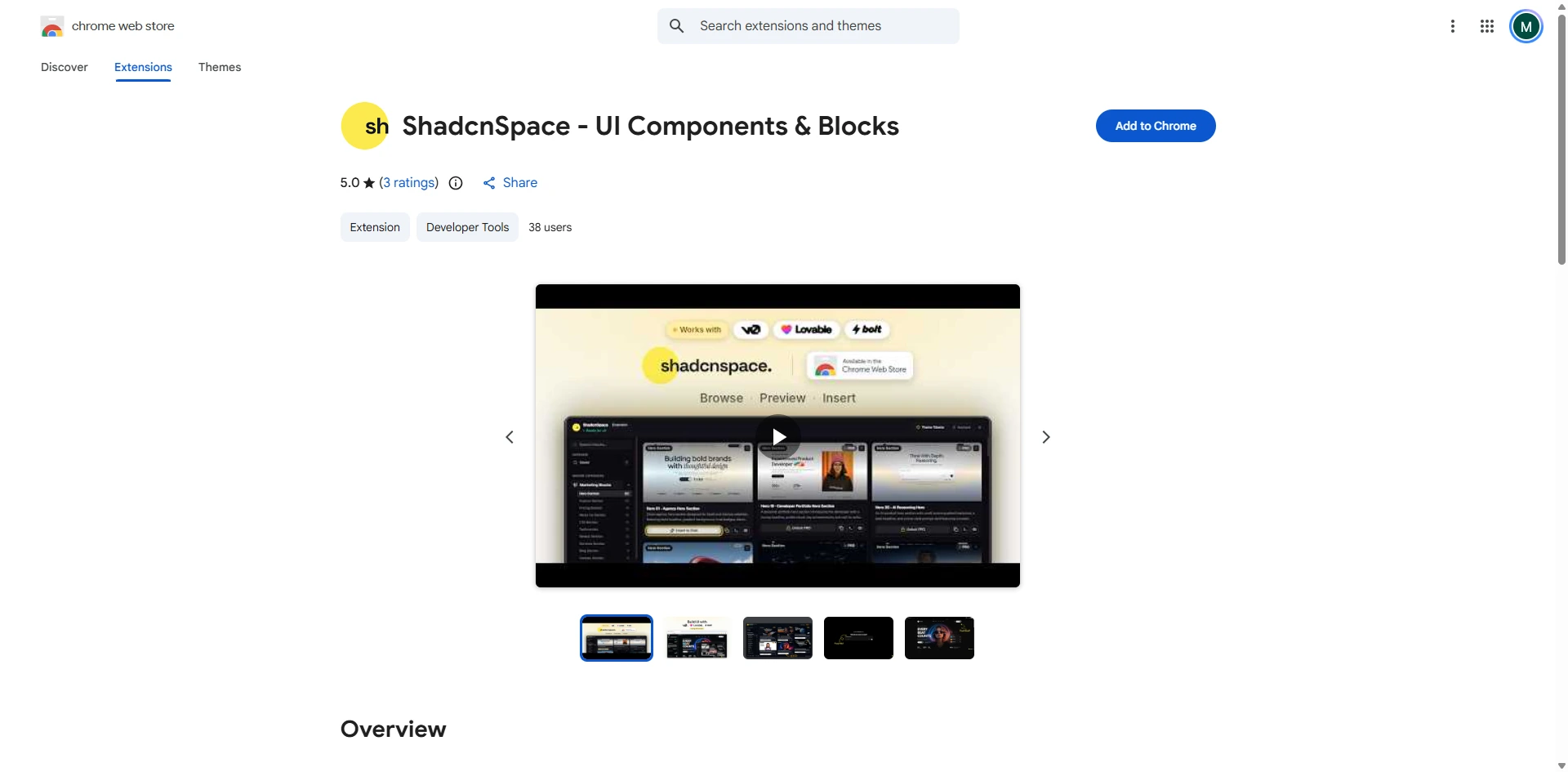
- Visit the ShadcnSpace Extension Page.
- Open the extension’s listing in the Chrome Web Store.
- Click Add to Chrome.
- Confirm the installation in the browser.
- Open Lovable, v0, or Bolt.new in a new tab.
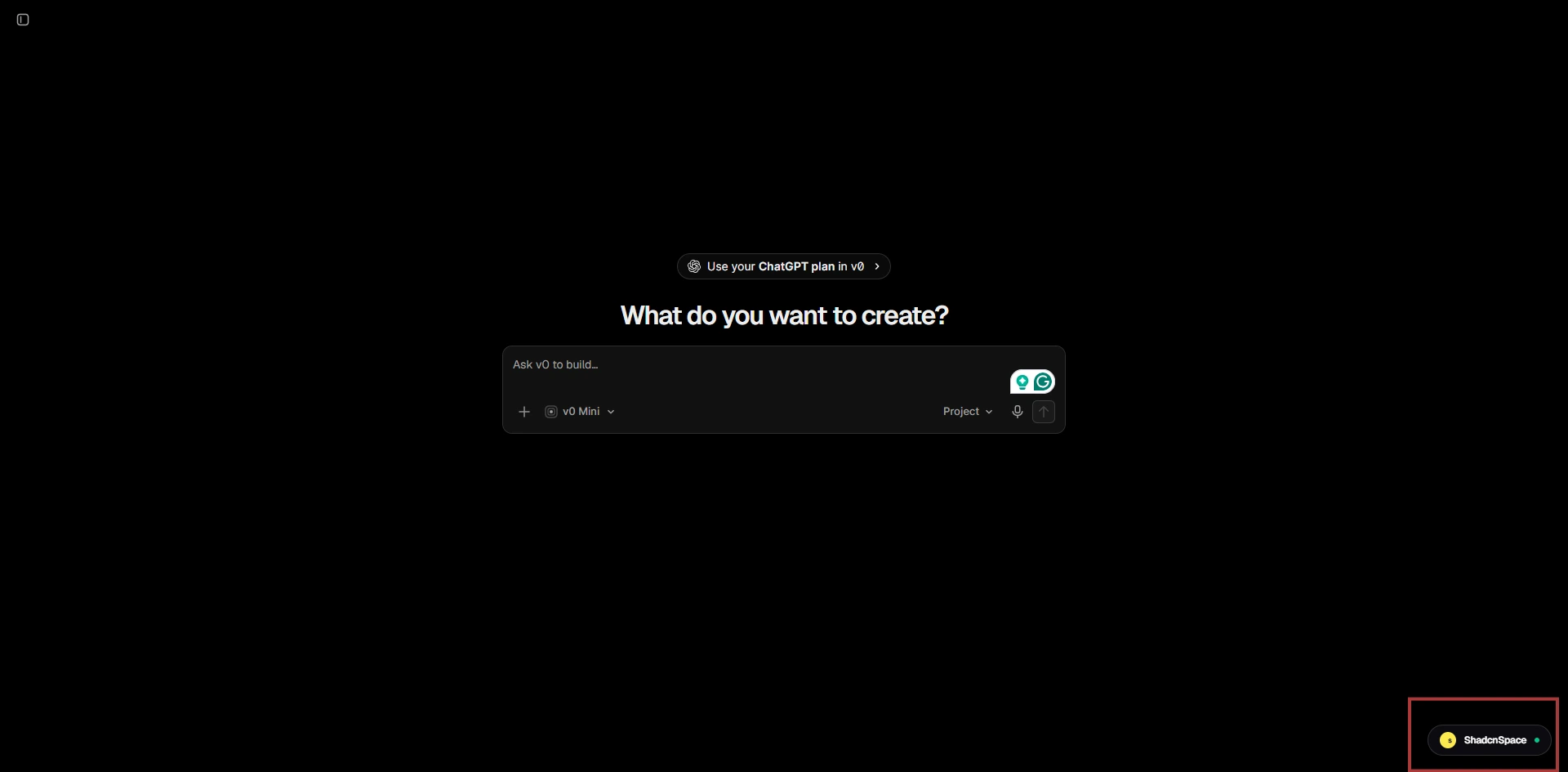
Once installed, the ShadcnSpace extension toggle should appear on supported AI builder pages.
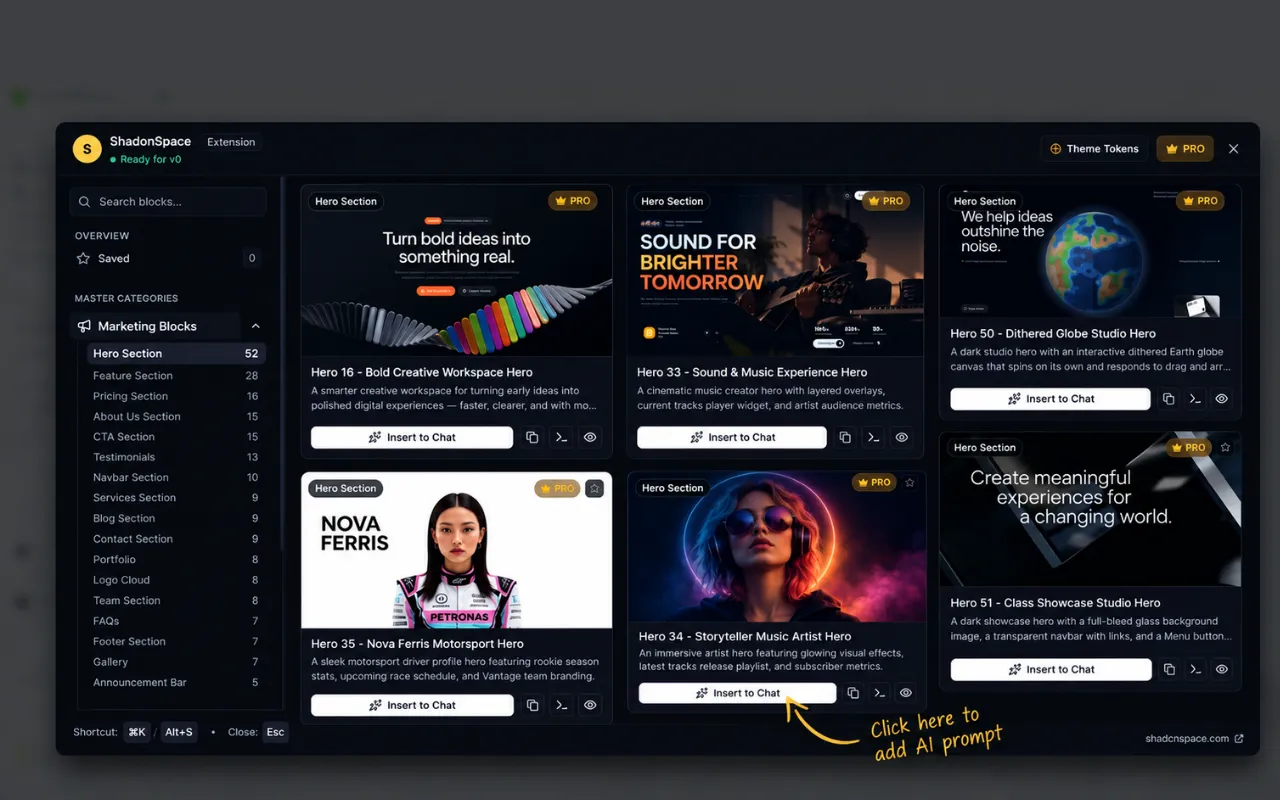
Clicking this toggle opens the extension interface, where you can browse and select UI blocks.
Understanding the extension interface
Before inserting a block into an AI builder, it helps to understand the extension’s basic interactions.
The main purpose of the interface is to help you find an appropriate UI design and transfer its prompt into your current development conversation.
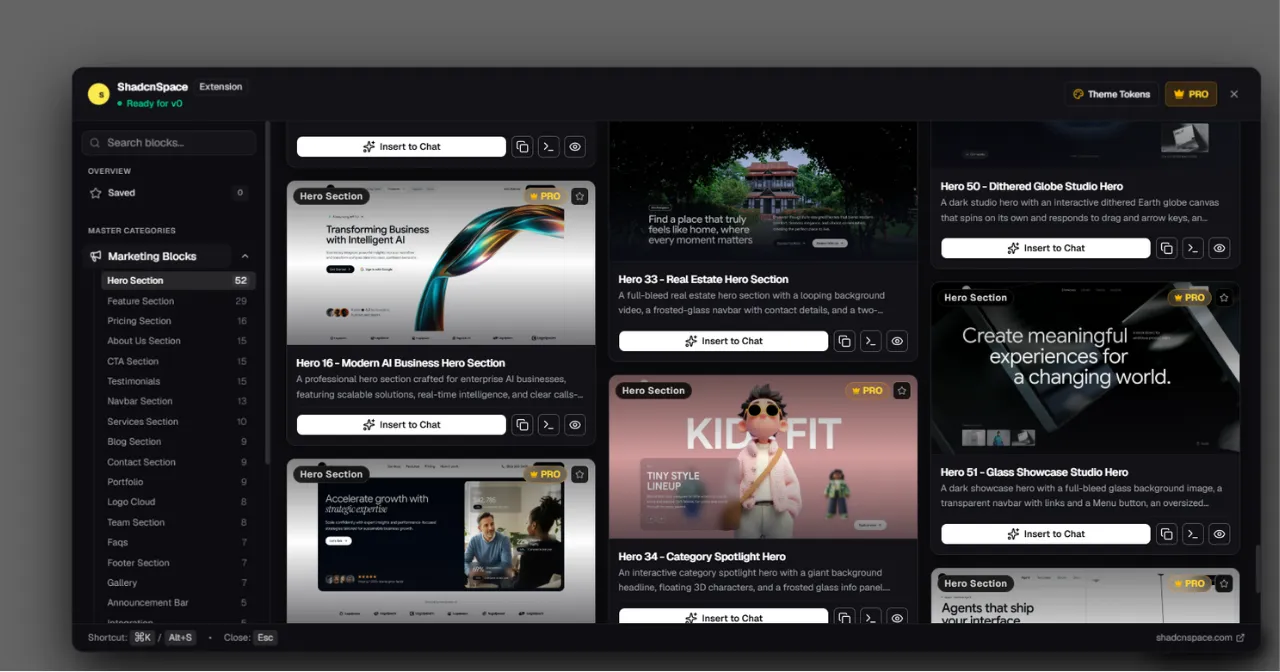
Browse the available blocks
ShadcnSpace contains different types of UI blocks for website sections and application interfaces.
Depending on what you are building, you can look for designs such as:
- Hero sections and landing page layouts.
- Feature grids and product sections.
- Pricing tables and testimonials.
- Dashboard layouts and statistics sections.
- Forms, tables, and application interface elements.
You can also explore the complete ShadcnSpace blocks library to discover the available designs.
Select a block and insert its prompt
Once you find a suitable design, select it and use the Insert into Chat action.
This is the main interaction between the extension and your AI builder. It transfers the selected block’s prepared prompt into the active conversation.
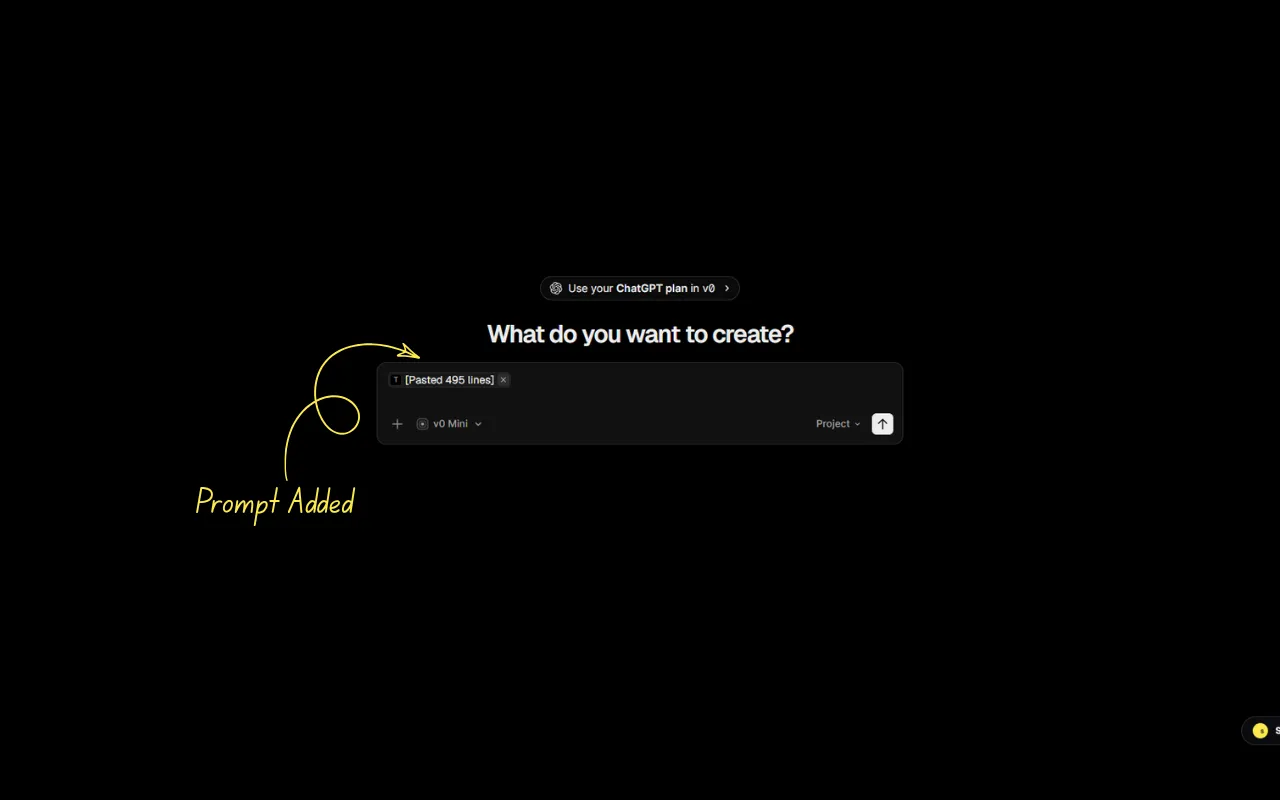
You can then review the inserted instructions before submitting them.
Using the extension with Lovable, v0, and Bolt.new
The ShadcnSpace extension follows the same core workflow across Lovable, v0, and Bolt.new. You do not need to learn a separate prompt-transfer process for each platform.
The difference is the AI builder’s project context and how it interprets the inserted instructions.
Step 1: Open your AI builder
Choose the platform you want to work with:
Create a new project or open an existing one.
If you are working on an existing application, make sure the correct project and conversation are active. This gives the AI builder the relevant context when processing your new instructions.
Step 2: Open the ShadcnSpace extension
Locate the ShadcnSpace extension toggle on the AI builder page and click it.
The extension interface will open, allowing you to browse the available UI designs without manually searching for prompts elsewhere.
Step 3: Find a block that matches your requirement
Think about the specific part of the interface you want to create.
For example:
- Building a SaaS homepage? Look for a hero or pricing section.
- Creating an admin interface? Look for dashboard, chart, or data table blocks.
- Developing a product page? Explore feature sections, testimonials, or call-to-action blocks.
Choose a block based on its structure and intended use, rather than selecting a design only because it looks attractive.
Step 4: Insert the block into the AI builder
After selecting your preferred block, click Insert into Chat.
The selected block’s prompt will be inserted into the active AI builder conversation.
You can now submit the prompt to let the AI builder generate the interface.
Step 5: Generate and review the implementation
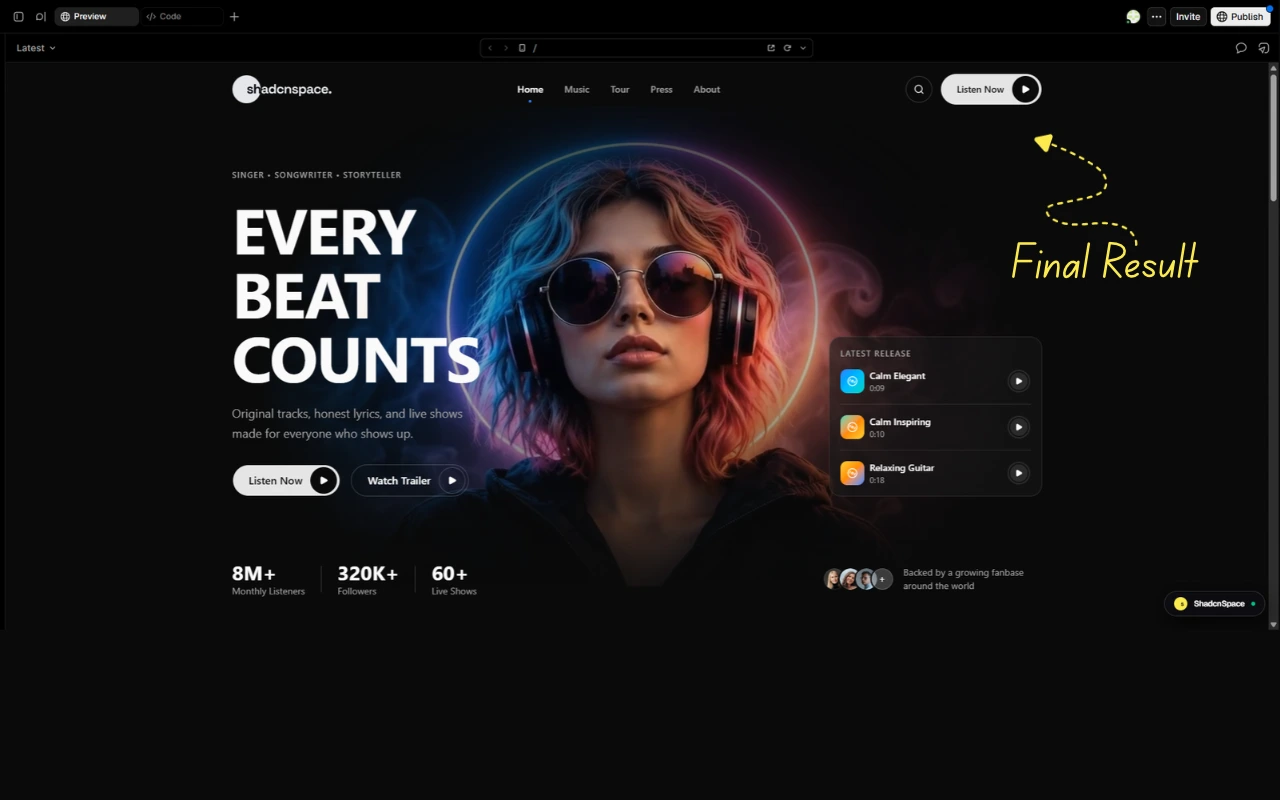
Submit the inserted prompt and wait for the AI builder to process it.
Once the interface is generated, compare the result with the selected design and your project requirements.
Pay attention to:
- Whether the generated layout follows the intended structure.
- Whether the spacing, typography, and colors fit your application.
- Whether the generated components integrate with the existing page.
- Whether interactive elements behave as expected.
If something needs improvement, provide additional instructions to the AI builder instead of starting the entire process again.
Practical example: adding a pricing section to a SaaS website
Consider a project where you already have a SaaS landing page with a navigation bar, hero section, and product features. The next task is to add a pricing section.
You could ask an AI builder to create one from scratch, but you would need to describe the layout, pricing cards, feature lists, buttons, and visual hierarchy.
With ShadcnSpace, you can approach this differently.
- Open your existing landing page in Lovable, v0, or Bolt.new.
- Launch the ShadcnSpace extension.
- Browse the available pricing blocks.
- Select a pricing layout that matches your requirements.
- Click Insert into Chat.
- Submit the prompt to generate the section.
After generation, you can give the AI builder additional instructions to match your application’s existing design.
For example, you could request:
- Use the current website’s color palette.
- Keep the pricing section consistent with the existing typography.
- Highlight the recommended subscription plan.
- Update the plan names and pricing information.
- Adjust the layout for smaller screens.
This approach gives you an existing UI pattern to work from while keeping the AI builder responsible for adapting the implementation to your project.
Tips for getting better results
Selecting a block is only one part of building a good interface. The instructions you provide after inserting the prompt can also influence the final implementation.
Here are some practices worth following.
Choose blocks based on their purpose
Start with the functionality or content you need. A pricing block, for example, should be selected based on how it presents plans and their differences, not just its visual appearance.
Give the AI builder project context
When adding a block to an existing application, explain where it should appear and which existing styles it should follow.
This is particularly useful when your project already has established colors, typography, spacing, and reusable components.
Refine individual elements
Avoid asking the AI builder to redesign everything when only one part needs adjustment.
Instead, specify the element that needs attention, such as a card layout, button, heading, or spacing between sections.
Review the generated code
The generated preview is not the only thing worth checking.
For an existing development project, review the implementation for:
- Unnecessary package installations.
- Duplicate components.
- Incorrect imports.
- Inconsistent styling.
- Accessibility issues.
- Changes that affect existing functionality.
The AI-generated result should be treated as an implementation that needs review, just like other code changes in your project.
Common issues and troubleshooting
The extension toggle does not appear
First, confirm that the extension has been installed and enabled in Chrome. Refresh the AI Builder page and check whether you are using a supported page.
The insert into chat action does not work
Make sure the AI Builder conversation is loaded and active. Try reopening the extension and using the insertion action again.
The inserted prompt is not visible
Check the active conversation and make sure you are looking at the correct project. If necessary, reopen the extension and repeat the insertion process.
The generated interface looks different from the selected block
The selected prompt is an instruction for the AI builder, not a guarantee of an identical implementation. Its output can depend on the project context and the builder’s interpretation.
Provide additional details about the layout and styling to bring the result closer to your requirements.
The new block does not match the existing application
Tell the AI builder to follow the existing design system and reuse the project’s current components and styling conventions where appropriate.
Review the generated changes before accepting them.
Conclusion
The ShadcnSpace Chrome Extension makes it easier to bring existing UI patterns into an AI-powered development workflow. Instead of starting every interface from a blank prompt, you can browse available blocks, select a design, and send its prepared instructions directly to Lovable, v0, or Bolt.new.
The extension provides the connection between the UI library and your AI builder, while the builder handles the code generation and project changes.
If you regularly use AI tools to develop websites and applications, explore ShadcnSpace and find reusable UI blocks and components for your next project.
