
Build production-ready websites while reducing AI token usage
AI-powered website builders like Lovable, v0, and Bolt have made it easier than ever to create modern web applications. With a single prompt, they can generate landing pages, dashboards, authentication flows, and complete user interfaces.
However, there is one challenge. Every time you ask an AI to create a Hero section, Pricing page, Dashboard, or FAQ, it has to generate the UI from scratch. That means spending additional tokens to reason about the layout, write the code, and often regenerate it until the result matches your expectations.
The ShadcnSpace Cloud MCP Server takes a different approach.
Instead of generating every UI component from scratch, your AI builder can discover production-ready components from the ShadcnSpace library and install them directly into your project. Rather than spending tokens recreating common UI patterns, the AI focuses on selecting the right component and customizing it for your application.
This approach offers several advantages:
- Reduce AI token usage by reusing existing production-ready components
- Generate websites faster by avoiding unnecessary UI generation
- Build with professionally designed ShadcnSpace blocks and components
- Maintain a consistent design system across your project
- Spend more time building features instead of refining generated layouts
Whether you’re building a SaaS application, an admin dashboard, a marketing website, or a personal portfolio, the ShadcnSpace Cloud MCP Server helps your AI assistant generate higher-quality results with less effort.
Watch the complete setup video
Prefer a visual walkthrough? Watch our complete tutorial where we connect the ShadcnSpace Cloud MCP Server to Lovable, v0, and Bolt, verify the connection, and generate a production-ready website step by step.
If you prefer following written instructions, continue reading. In the next sections, you’ll learn how to connect the Cloud MCP Server, authenticate your account, and start generating production-ready websites using ShadcnSpace components.
What is the ShadcnSpace Cloud MCP Server?
The ShadcnSpace Cloud MCP Server is a hosted Model Context Protocol (MCP) server that gives AI-powered development tools direct access to the ShadcnSpace component library.
Instead of asking your AI assistant to generate every UI component from scratch, the MCP server allows it to discover, select, and install production-ready components directly into your project.
Think of it as giving your AI builder access to a curated library of reusable UI blocks instead of asking it to reinvent the same components every time.
Why does this matter?
Without an MCP server, a prompt like:
“Build a SaaS landing page.”
requires the AI to:
- Design the layout.
- Decide which sections to include.
- Generate hundreds of lines of React and Tailwind CSS.
- Fix styling inconsistencies.
- Regenerate sections if the result isn’t what you expected.
Each of these steps consumes additional AI tokens and increases the time required to generate a complete page.
With the ShadcnSpace Cloud MCP Server, the workflow is different.
The AI can browse the available ShadcnSpace components, choose the most appropriate blocks for your request, and install them directly into your project. Instead of spending tokens recreating common UI patterns, it focuses on assembling and customizing production-ready components.
Benefits of Using the Cloud MCP Server
- Lower AI token usage by reducing unnecessary UI generation.
- Faster responses because the AI reuses existing components.
- Production-ready React and Tailwind CSS code.
- Consistent UI across your entire application.
- No need to repeatedly regenerate common layouts.
- Access to professionally designed components maintained by ShadcnSpace.
Why Choose the Cloud Version?
Traditional MCP servers often require local setup and ongoing maintenance.
With the ShadcnSpace Cloud MCP Server, everything is hosted for you.
You don’t need to:
- Install Node.js for the MCP server.
- Clone a Git repository.
- Run Docker containers.
- Manage local server updates.
- Keep an MCP process running in the background.
Simply connect your AI builder using your ShadcnSpace credentials, and you’re ready to start building.
Supported AI Builders
The Cloud MCP Server works with modern AI development tools that support the Model Context Protocol, including:
- Lovable
- v0
- Bolt
- Cursor
- Claude Desktop
- Other MCP-compatible clients
In the following sections, you’ll learn how to connect the Cloud MCP Server to Lovable, v0, and Bolt in just a few minutes.
Prerequisites
Before connecting the ShadcnSpace Cloud MCP Server, make sure you have the following ready.
1. A ShadcnSpace Account
You’ll need a ShadcnSpace account to access the Cloud MCP Server and manage your license.
If you don’t already have an account, create one before continuing.
2. An Active Pro License
The Cloud MCP Server is available for ShadcnSpace Pro users.
Your Pro license unlocks access to premium components, templates, and the hosted MCP server.
3. Your Email Address
The Cloud MCP Server uses your registered ShadcnSpace email address during authentication.
Make sure you use the same email associated with your ShadcnSpace account.
4. Your License Key
Your license key verifies that your account has access to the Cloud MCP Server.
You’ll use this key when connecting your AI builder.
5. A Supported AI Builder
This guide demonstrates the setup process using:
- Lovable
- v0
- Bolt
The same authentication method can also be used with other MCP-compatible clients.
Get your cloud MCP credentials
Before configuring your AI builder, you’ll need two pieces of information from your ShadcnSpace account.
- Your registered email address
- Your Pro license key
These credentials allow the Cloud MCP Server to authenticate your requests and provide access to premium ShadcnSpace components.
Step 1: Sign in to ShadcnSpace
Log in to your ShadcnSpace account using the email associated with your Pro license.
Step 2: Open the license dashboard
Navigate to your account dashboard and open the Licenses section.
Here you’ll find all of your active licenses and their associated license keys.
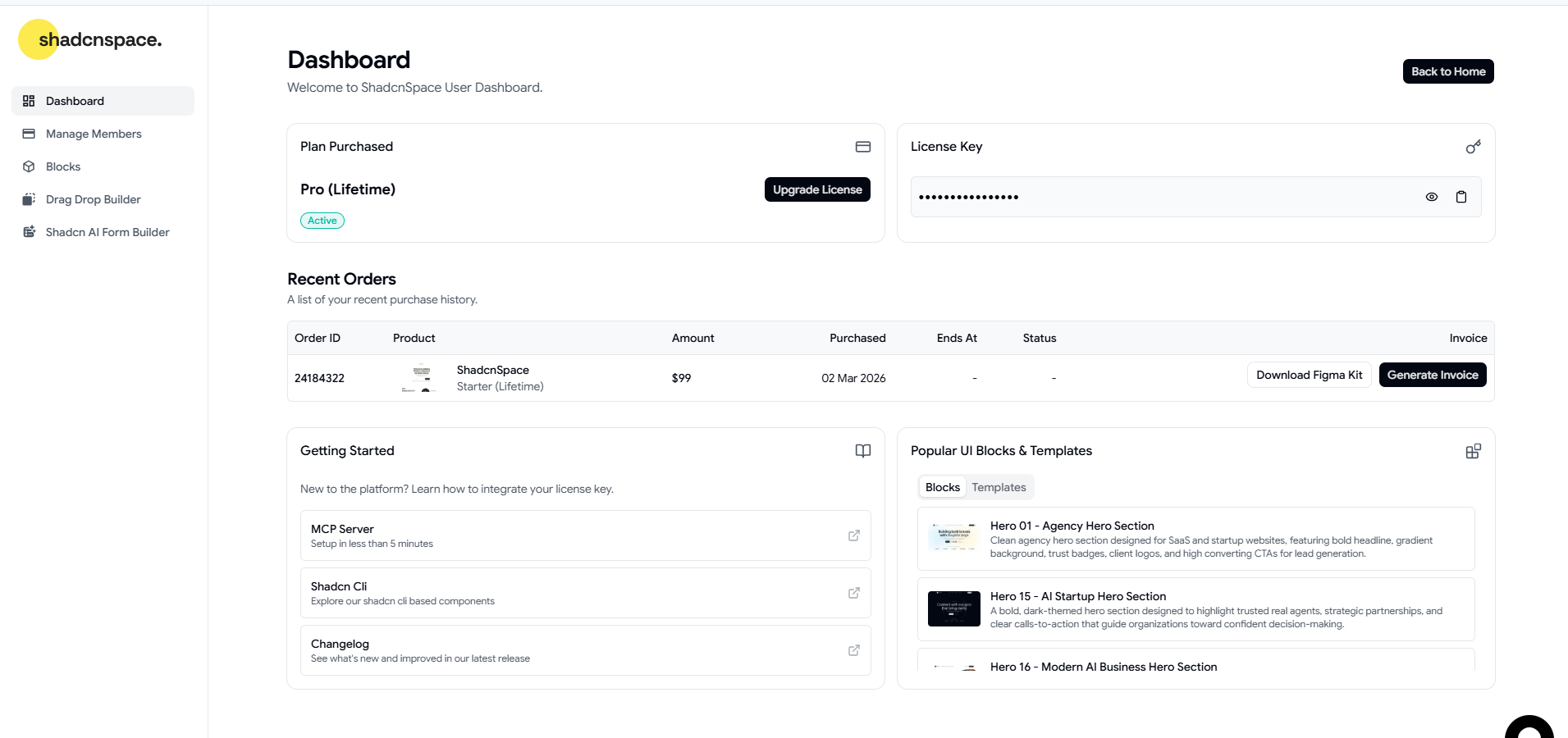
Step 3: Copy your license key
Locate your active Pro license and copy the license key.
You’ll use this key in the MCP configuration for Lovable, v0, and Bolt.
Important:
Your license key is sensitive information. Store it securely and avoid sharing it in screenshots, public repositories, or shared configuration files.
Once you have your email address and license key, you’re ready to connect the ShadcnSpace Cloud MCP Server to your preferred AI builder.
Cloud MCP Configuration
Now that you have your ShadcnSpace credentials, it’s time to configure the Cloud MCP Server.
Every supported AI builder connects to the same Cloud MCP endpoint. The only difference between Lovable, v0, and Bolt is where you enter the configuration.
MCP Configuration
Replace the placeholder values below with your own ShadcnSpace account details.
{
  "mcpServers": {
    "shadcnspace": {
      "url": "https://mcp.shadcnspace.com/mcp",
      "headers": {
        "X-Api-Key": "[email protected]:your-license-key"
      }
    }
  }
}
Understanding the configuration
The configuration uses two values to authenticate your requests.
MCP server URL
https://mcp.shadcnspace.com/mcpThis is the hosted ShadcnSpace Cloud MCP Server endpoint. Once connected, your AI builder communicates with this endpoint whenever it needs to discover or install components from the ShadcnSpace library.
X-Api-Key Header
The X-Api-Key header combines your ShadcnSpace account email and license key into a single value using the following format:
your-email@example.com:your-license-keyFor example:
[email protected]:LIC_12ab123c
During authentication, the Cloud MCP Server validates both your email address and license key before granting access to premium components.
How authentication works:
The Cloud MCP Server reads the X-Api-Key header, extracts your email address and license key, verifies your account, and then grants your AI builder access to the available ShadcnSpace components.
Why use the Cloud MCP server?
After connecting your AI builder, it no longer needs to generate every UI component from scratch.
Instead, it can:
- Discover production-ready components from the ShadcnSpace library.
- Install the selected components directly into your project.
- Customize the installed components based on your prompt.
- Continue building your application using those components as a foundation.
This workflow has several advantages:
- Lower AI token usage because the AI spends less time generating repetitive UI code.
- Faster responses by reusing existing components instead of recreating common layouts.
- More consistent designs built from a curated component library.
- Production-ready code that follows modern React, Next.js, Tailwind CSS, and shadcn/ui best practices.
Now that your Cloud MCP configuration is ready, let’s connect it to Lovable.
Connect the Cloud MCP server to Lovable
With your Cloud MCP configuration ready, you’re now ready to connect it to Lovable.
The setup only takes a few minutes. Once connected, Lovable will be able to discover and install production-ready components from the ShadcnSpace library directly into your project.
Step 1: Open MCP Settings
Sign in to your Lovable account and open the project where you want to use the ShadcnSpace Cloud MCP Server.
Click the + icon in the sidebar and select Connectors.
From the available connector options, choose Custom MCP.
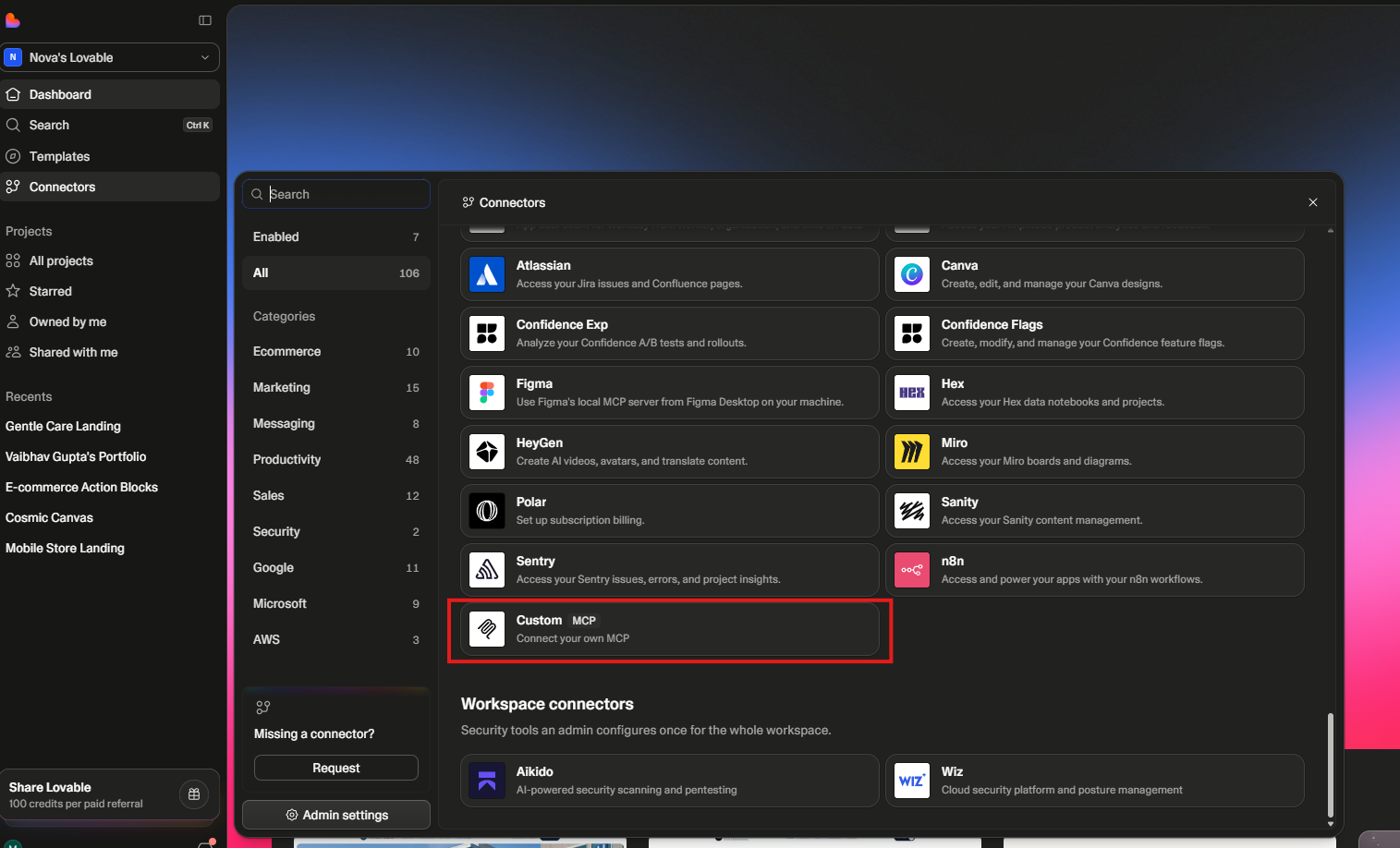
Step 2: Configure the cloud MCP server
Fill in the MCP server details using the following values.
| Field | Value |
|---|---|
| Name | ShadcnSpace |
| Server URL | https://mcp.shadcnspace.com/mcp |
| Authentication | Bearer token or API Key |
| Token | [email protected]:your-license-key |
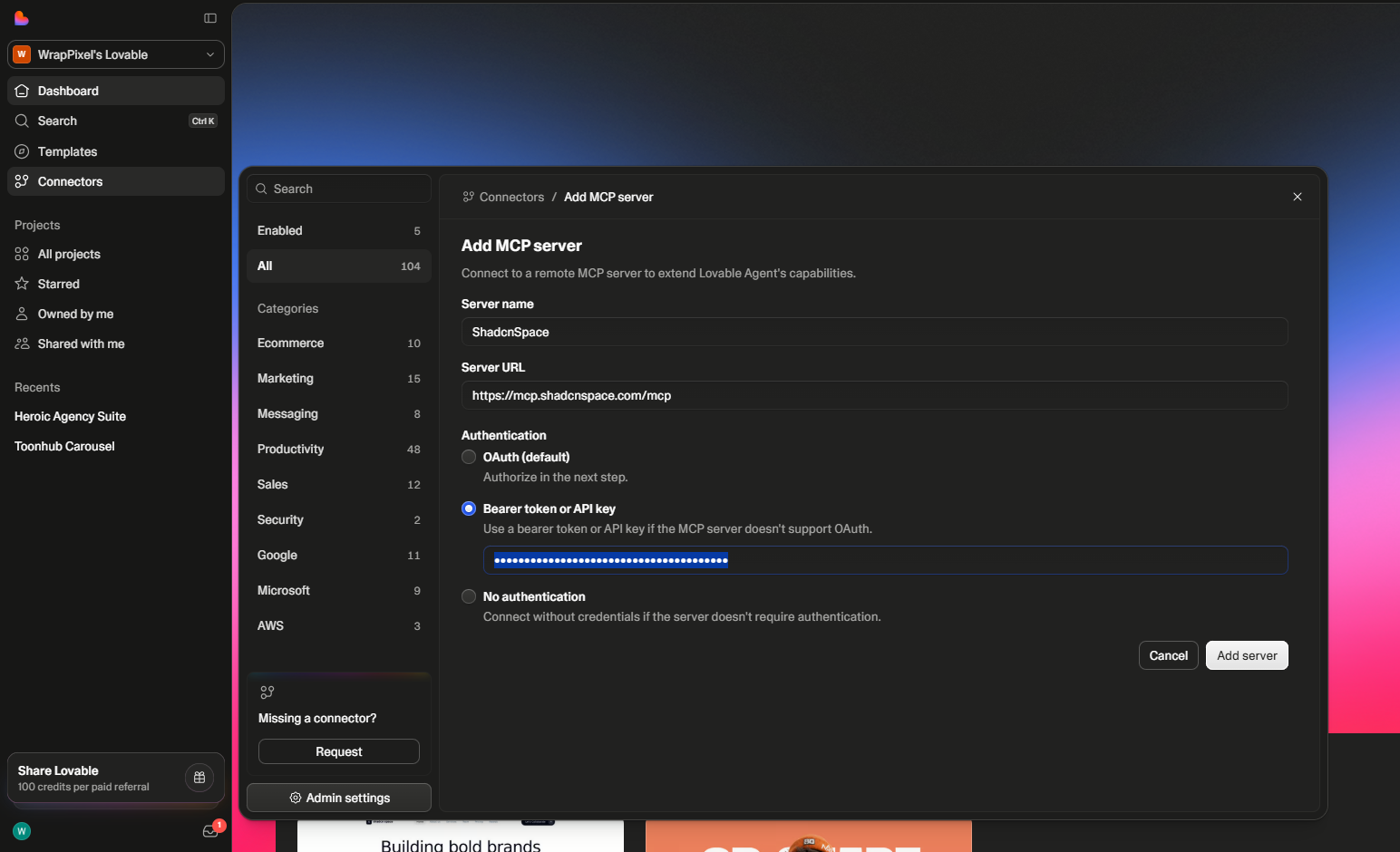
After entering the configuration, click Add Server, depending on your Lovable version.
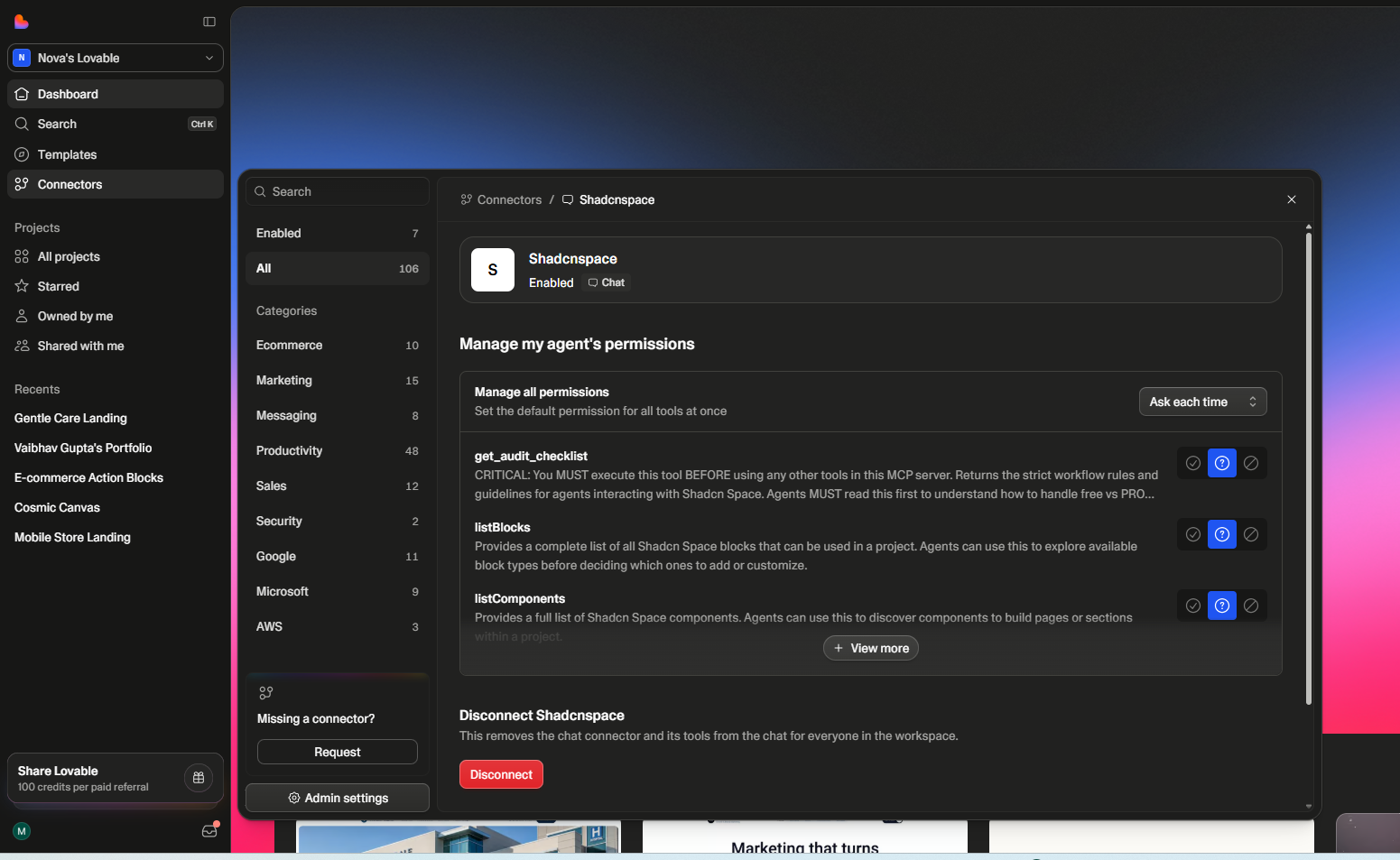
Step 3: Verify the connection
If the authentication is successful, Lovable will connect to the Cloud MCP Server and display the available ShadcnSpace tools.
This confirms that your AI builder can now communicate with the ShadcnSpace Cloud MCP Server.
Step 4: Build a healthcare landing page with ShadcnSpace components
With the Cloud MCP Server connected, you can start building projects using natural language prompts.
To verify the integration, we asked Lovable to create a modern healthcare landing page using ShadcnSpace components.
Example Prompt
Create a modern healthcare landing page using ShadcnSpace components.

Include:
- Hero section
- Services
- Doctors
- Why Choose Us
- Testimonials
- FAQ
- Contact CTA
Using the ShadcnSpace Cloud MCP Server, Lovable discovered relevant components from the ShadcnSpace library, installed them into the project, and customized them to match the prompt.
Instead of generating every section from scratch, the AI reused production-ready components, allowing it to focus on assembling and tailoring the page. This results in faster generation, lower AI token usage, and a more consistent user interface.
Live Preview
We’ve published the generated healthcare landing page so you can explore the final result.
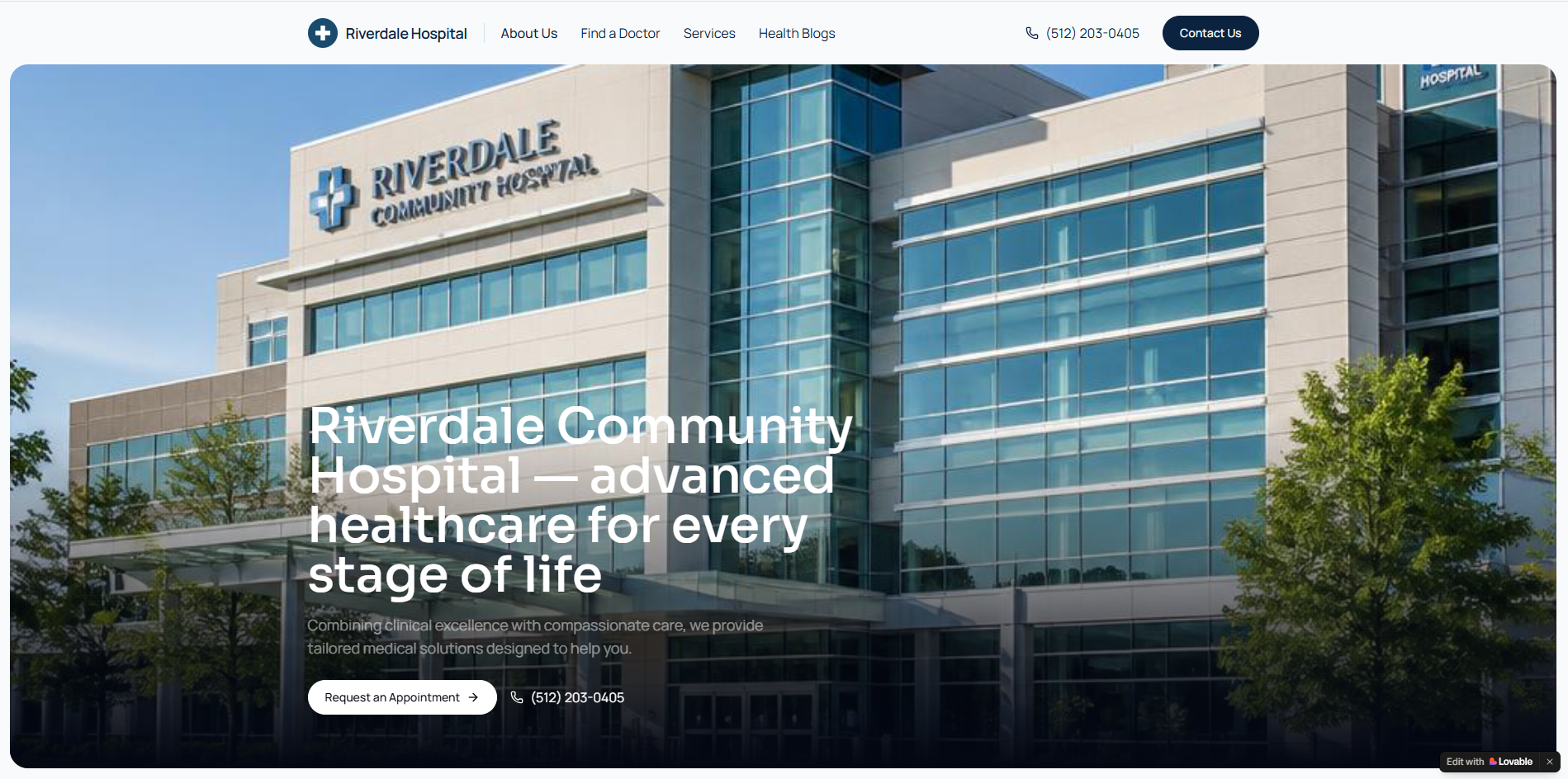
Explore the live preview to see how ShadcnSpace components are combined to create a complete landing page. You can follow the same workflow to build SaaS websites, portfolios, agency websites, dashboards, and many other projects using your preferred AI builder.
Your Lovable setup is now complete. Next, we’ll connect the ShadcnSpace Cloud MCP Server to v0.
Connect the Cloud MCP Server to v0
If you’ve already connected the Cloud MCP Server in Lovable, you’ll notice that the setup process in v0 is very similar. The only difference is where the MCP configuration is located.
Step 1: Open MCP Settings
Sign in to your v0 account and click your profile icon.
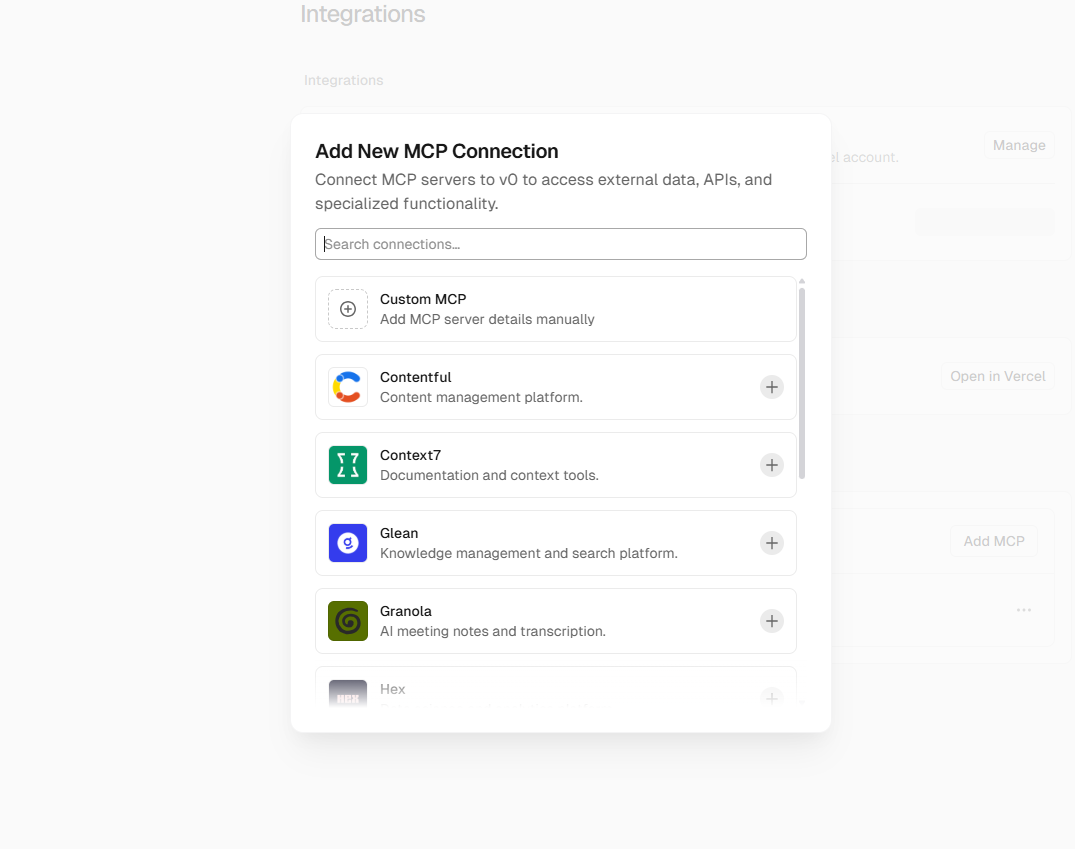
Navigate to Settings and open the MCP Servers ( Integrations ) section.
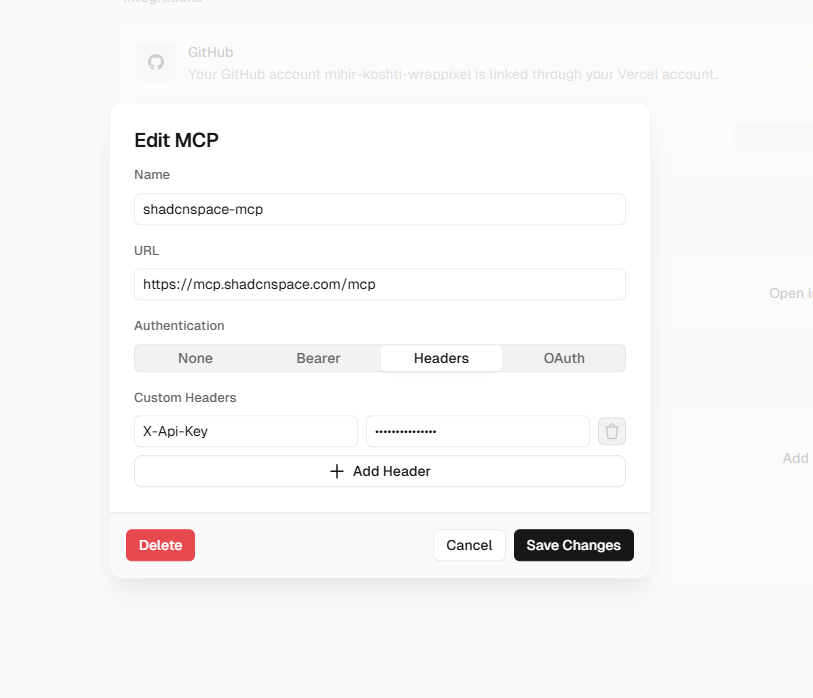
Click Add Custom MCP Connection to create a new server.
Step 2: Enter your cloud MCP configuration
Configure the server using the same values shown in the Cloud MCP Configuration section earlier in this guide.
You’ll need to:
- Enter a name for the server, such as ShadcnSpace.
- Paste the Cloud MCP Server endpoint.
- Select Header as the authentication method.
- Add the X-Api-Key header using your email and license key.
Once you’ve entered the details, click Add to save the connection.
Step 3: Verify the connection
After saving the configuration, v0 will establish a connection with the ShadcnSpace Cloud MCP Server.
If the connection is successful, the server will appear in your MCP Servers list and will be available for your projects.
Step 4: Build a SaaS website with ShadcnSpace components
To verify that everything is working correctly, we asked v0 to build a modern SaaS landing page using the ShadcnSpace Cloud MCP Server.
Example Prompt
Create a modern SaaS landing page using ShadcnSpace components.

Include:
- Hero section
- Features
- Pricing
- Testimonials
- FAQ
- CTA
Instead of generating each section from scratch, v0 discovered matching components from the ShadcnSpace library, installed them into the project, and customized them based on the prompt.
This workflow reduces unnecessary AI token usage while producing a consistent, production-ready website much faster than generating every section manually.
Live Preview
We’ve published the generated website so you can explore the final result.
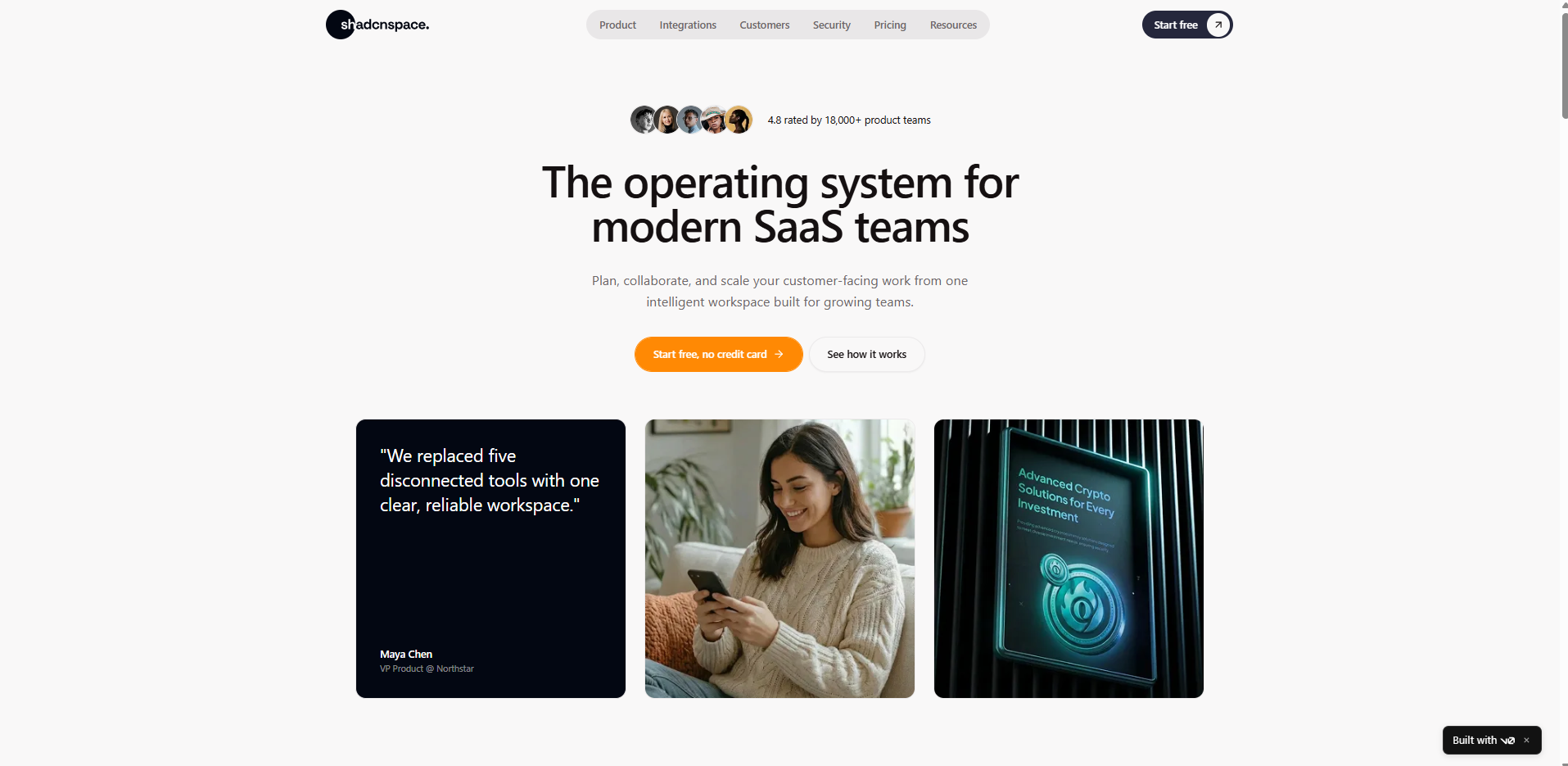
Take a few minutes to explore the preview and inspect the generated UI. You’ll notice that the page is built using reusable ShadcnSpace components, making it easier to extend, customize, and maintain.
Your v0 setup is now complete. Next, we’ll connect the ShadcnSpace Cloud MCP Server to Bolt.
Connect the cloud MCP server to Bolt.new
Connecting the ShadcnSpace Cloud MCP Server to Bolt follows the same process as the previous integrations. Once connected, Bolt can discover and install production-ready ShadcnSpace components directly into your project.
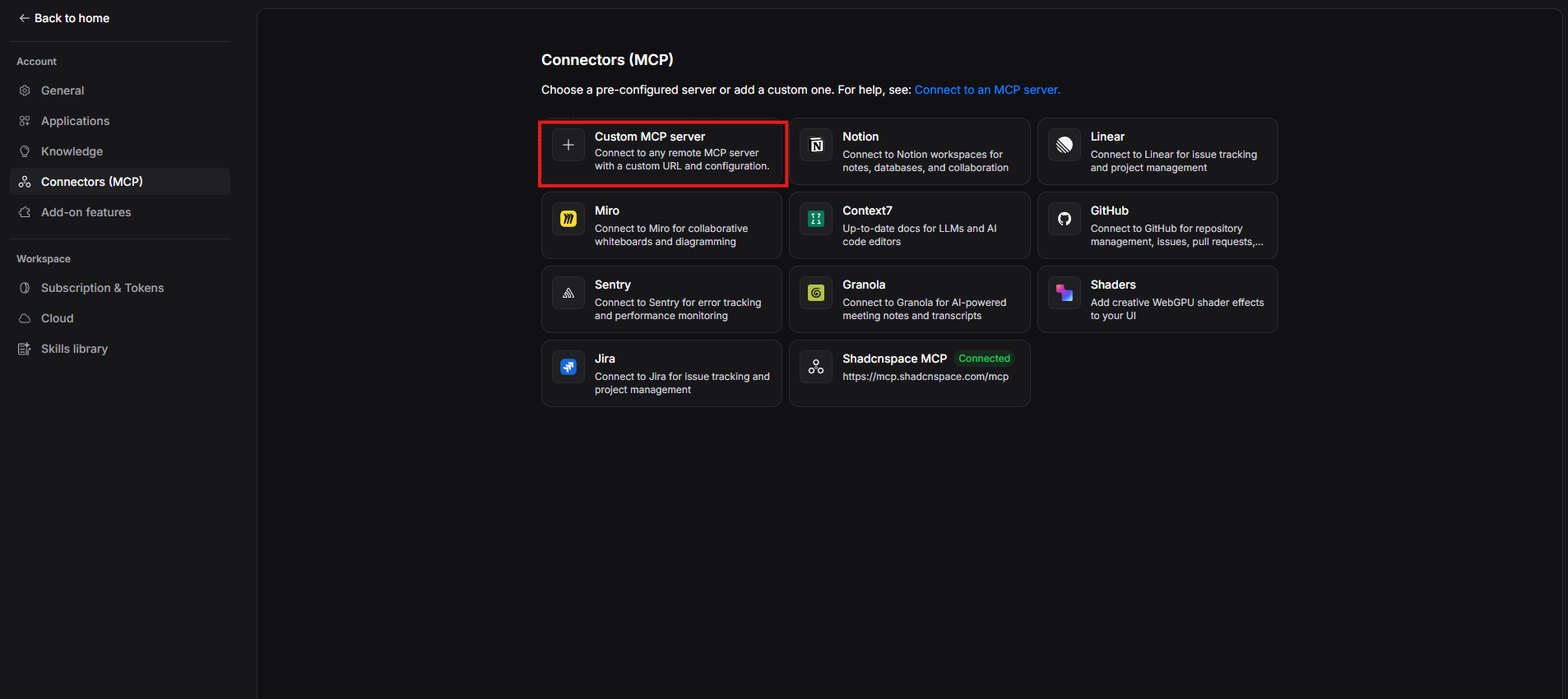
Step 1: Open MCP settings
Sign in to your Bolt account and open the project where you want to use the Cloud MCP Server.
Click the Settings icon and navigate to the MCP Servers section.
Select Add Custom MCP Server to create a new connection.
Step 2: Configure the cloud MCP server
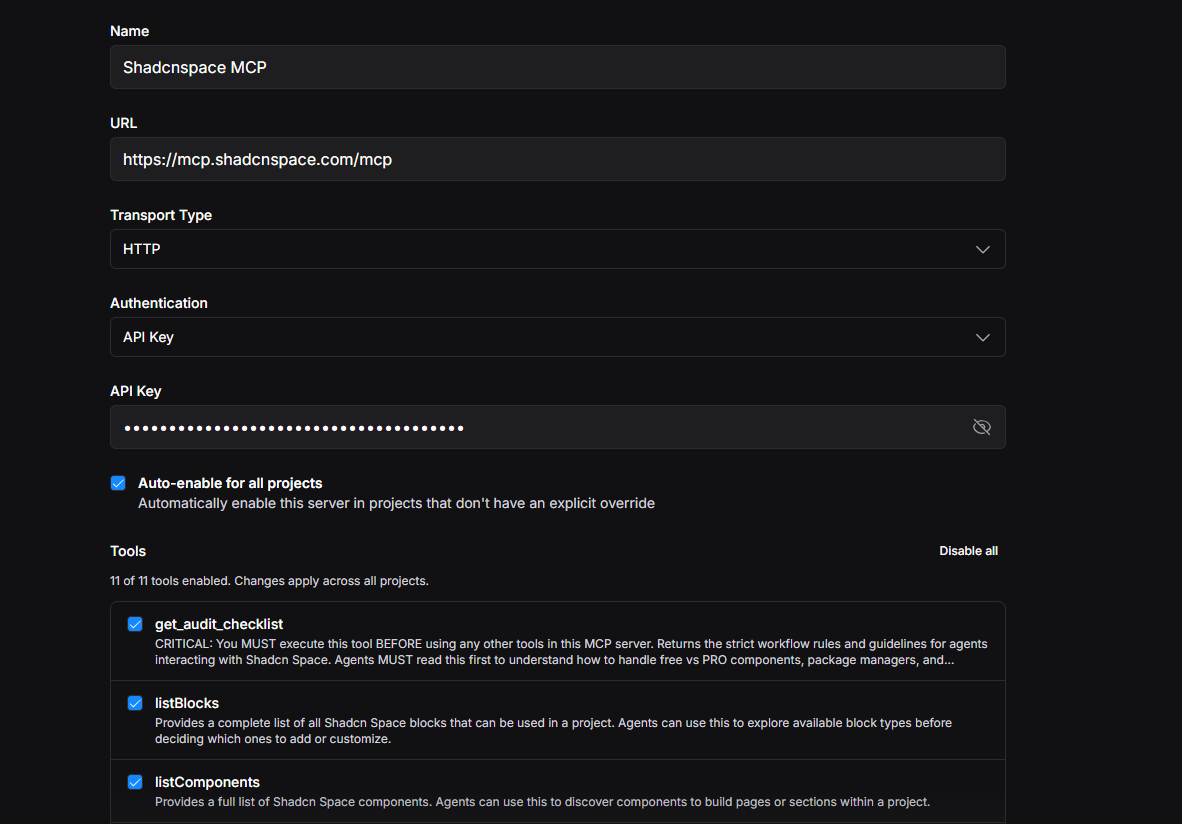
Enter the same configuration used in the previous sections.
- Name: ShadcnSpace
- Server URL: https://mcp.shadcnspace.com/mcp
- Authentication: Header
- Header Name: X-Api-Key
- Header Value: [email protected]:your-license-key
If you frequently create new projects in Bolt, you can enable Auto-enable for all projects so the Cloud MCP Server is available automatically.
Step 3: Verify the connection
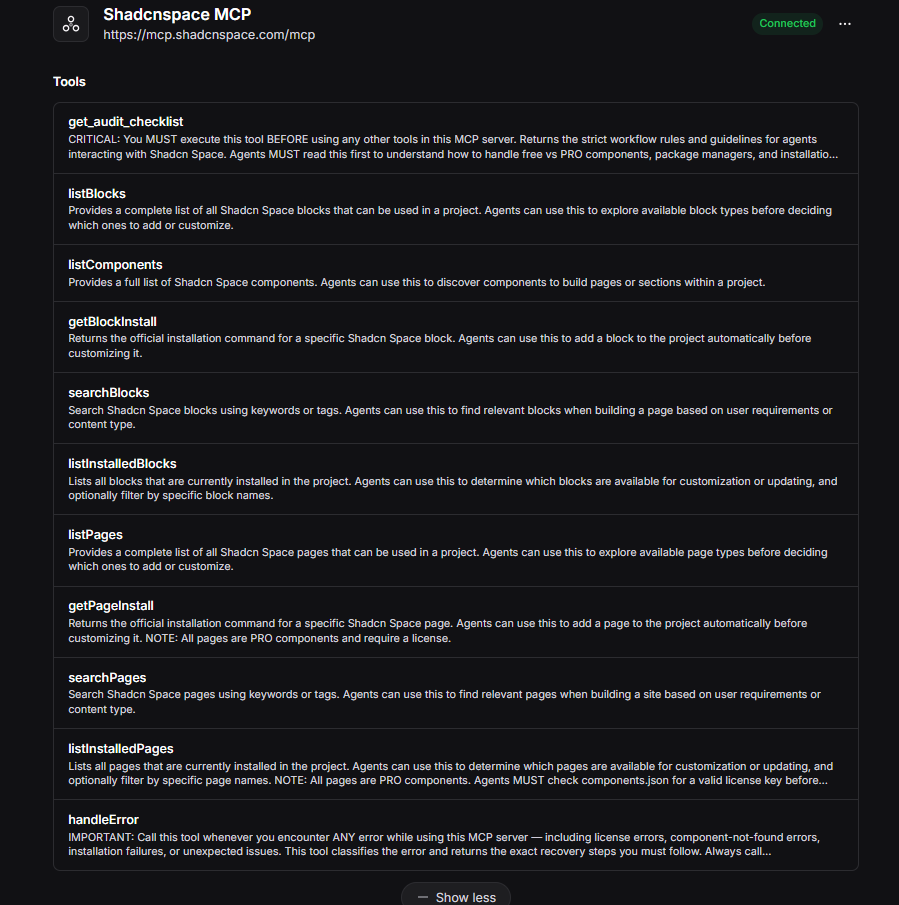
Save the configuration.
If the connection is successful, Bolt will display the available ShadcnSpace MCP tools, confirming that it can communicate with the Cloud MCP Server.
Step 4: Build a portfolio landing page with ShadcnSpace
To verify the integration, we asked Bolt to create a modern portfolio landing page using ShadcnSpace pages and components.
Example Prompt
Create a modern developer portfolio landing page using ShadcnSpace pages.

Include:
- Hero section
- About section
- Featured projects
- Skills
- Testimonials
- Contact CTA
Using the ShadcnSpace Cloud MCP Server, Bolt discovered a matching portfolio page, installed it into the project, and customized it based on the prompt.
Instead of generating every section from scratch, the AI reused a production-ready page and focused on tailoring the content and layout. This results in a faster workflow, more consistent UI, and lower AI token usage.
Live Preview
Explore the generated portfolio landing page to see the final result.
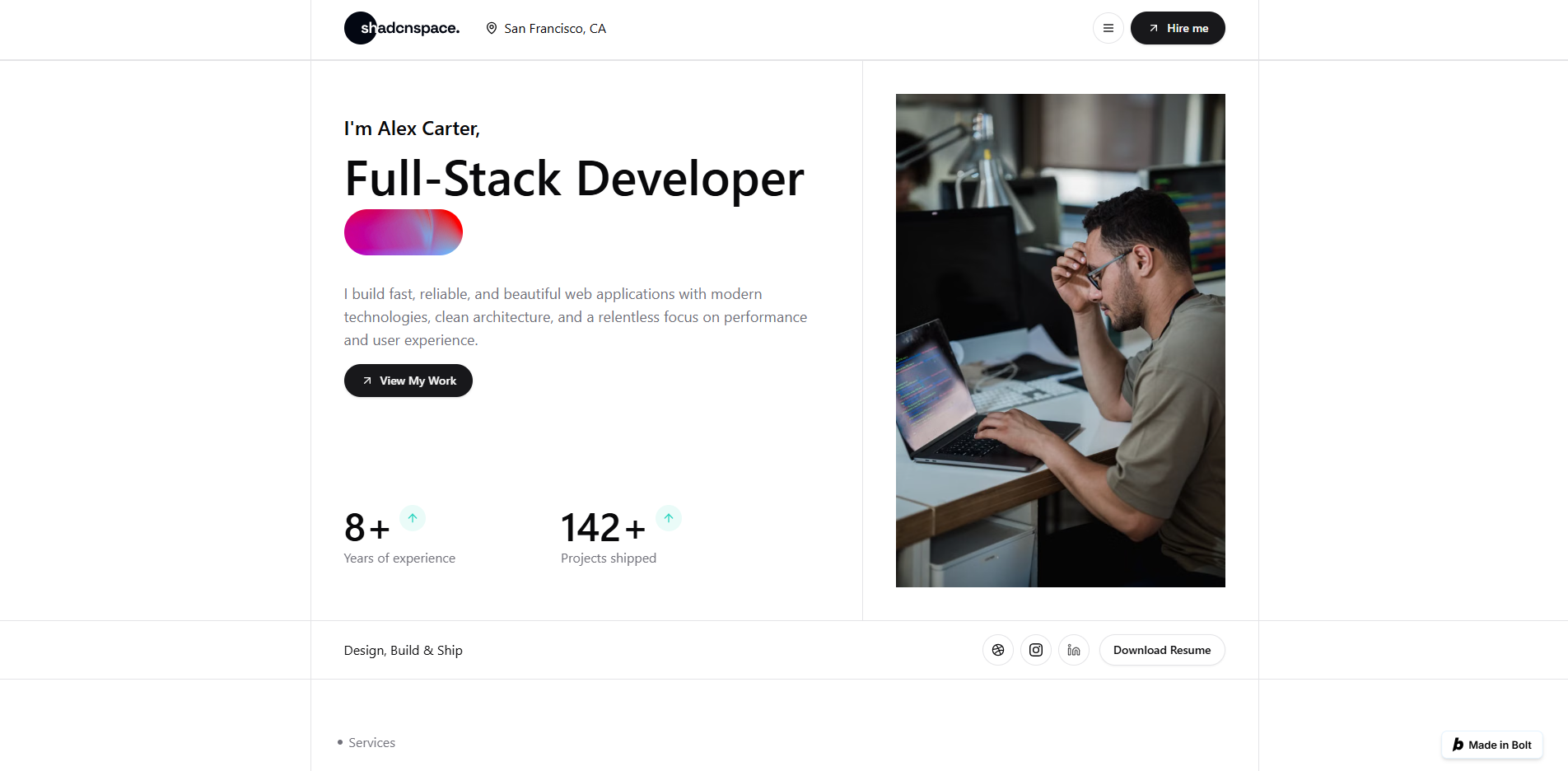
The generated page demonstrates how Bolt can use the ShadcnSpace Cloud MCP Server to discover and reuse professionally designed pages, allowing you to move from an idea to a polished landing page much faster than generating every component manually.
Your Bolt setup is now complete. With Lovable, v0, and Bolt connected, you’re ready to build production-ready websites using the ShadcnSpace Cloud MCP Server.
Common mistakes & troubleshooting
If you’re unable to connect to the ShadcnSpace Cloud MCP Server, don’t worry. Most setup issues can be resolved in just a few minutes.
Authentication Failed
If your AI builder reports an authentication error, verify that your X-Api-Key is formatted correctly.
The value should follow this format:
your-email@example.com:your-license-keyAlso make sure you’re using the same email address associated with your ShadcnSpace account.
MCP server doesn’t connect
If the connection cannot be established:
- Verify you’re using the correct Cloud MCP endpoint.
- Check that your internet connection is stable.
- Save the configuration and try reconnecting.
- Restart your AI builder if the server doesn’t appear immediately.
Components aren’t being used
If the AI continues generating generic UI instead of using ShadcnSpace components:
- Confirm the MCP server status is Connected.
- Reference ShadcnSpace components or ShadcnSpace pages in your prompt.
- Start a new chat or project after connecting the MCP server.
Invalid server URL
Ensure you’re using the latest Cloud MCP endpoint:
https://mcp.shadcnspace.com/mcp
Even a small typo in the URL will prevent the AI builder from connecting.
Still having issues?
If none of the above solutions resolve the problem, visit the ShadcnSpace MCP documentation or contact our support team. Include your AI builder, the error message, and the steps you’ve already tried so we can help you resolve the issue more quickly.
Why use the ShadcnSpace cloud MCP server?
By now, you’ve connected the ShadcnSpace Cloud MCP Server to Lovable, v0, and Bolt. But beyond the quick setup, what does this change in your day-to-day development workflow?
The biggest advantage is that your AI assistant no longer has to generate common UI patterns from scratch. Instead, it can discover and install production-ready components and pages from the ShadcnSpace library, then focus on customizing them to fit your project.
Build faster with reusable components
Whether you’re creating a SaaS landing page, healthcare website, portfolio, or admin dashboard, many UI patterns are repeated across projects.
With the Cloud MCP Server, your AI can reuse these professionally designed components instead of recreating them every time. This helps you move from an idea to a working interface much more quickly.
Reduce AI token usage
Generating large UI layouts from scratch requires the AI to spend additional tokens reasoning about structure, styling, and implementation.
When the AI can discover existing ShadcnSpace components, it spends less time generating repetitive code and more time assembling your application. This leads to a more efficient workflow and can reduce overall token usage for UI generation tasks.
Maintain a consistent design system
Using components from a single library helps keep your application visually consistent.
Instead of combining independently generated sections with different spacing, typography, or styling, your project is built from reusable components that follow the same design language.
Focus on building features
The Cloud MCP Server handles the repetitive part of UI development by giving your AI access to ready-to-use components and pages.
That allows you to spend more time implementing business logic, integrating APIs, and refining the user experience instead of repeatedly prompting the AI to recreate common layouts.
Whether you’re using Lovable, v0, Bolt, or another MCP-compatible AI builder, the workflow remains the same: discover, install, customize, and ship.
Final Thoughts
The ShadcnSpace Cloud MCP Server makes it easier to build modern websites with AI by giving your favorite AI builders direct access to production-ready components and pages.
In this guide, you’ve learned how to:
- Connect the ShadcnSpace Cloud MCP Server to Lovable, v0, and Bolt.
- Authenticate using your ShadcnSpace account.
- Build real-world projects, including a healthcare landing page, a SaaS landing page, and a portfolio landing page.
- Troubleshoot common connection issues.
Instead of asking AI to generate every UI section from scratch, your AI builder can now discover, install, and customize professionally designed ShadcnSpace components. This creates a faster development workflow, produces more consistent interfaces, and reduces unnecessary AI token usage.
Whether you’re building a startup landing page, an internal dashboard, a portfolio, or your next SaaS product, the ShadcnSpace Cloud MCP Server helps you move from idea to production-ready UI more efficiently.
Continue exploring ShadcnSpace
Looking for more ways to accelerate your workflow? Explore the resources below:
- 📚 Documentation – Learn more about the Cloud MCP Server and available integrations.
- 🧩 Shadcn Components Library – Browse production-ready components.
- 🎥 YouTube Tutorial – Watch the complete setup guide for Lovable, v0, and Bolt.
- 🧱 Shadcn Blocks Library – Explore ready-to-use blocks and sections for building modern websites faster.
- 🖼️ Shadcn Templates Library – Discover complete website templates and landing pages built with Shadcn UI and Tailwind CSS.
- 📊 Shadcn Dashboard – Explore customizable dashboard layouts, components, and interfaces for modern web applications.
- 🌐 Ready-to-use Shadcn Website Pages – Browse complete website pages for inspiration and use them as a starting point for your projects.
As we continue to expand ShadcnSpace, more components, pages, templates, and AI integrations will be added to help you build even faster.
If you haven’t connected the Cloud MCP Server yet, now is the perfect time to set it up and experience a more efficient AI-powered development workflow.
