How to use Shadcn Space MCP Server ?
Bring Shadcn Space directly into your editor. The MCP Server allows AI-powered IDEs to browse, install, and compose components and blocks that match your project.
What is MCP?
MCP (Model Context Protocol) allows AI tools inside your code editor to access external data sources and actions. With Shadcn Space MCP, your AI understands our entire component and block catalog.
- Search blocks and components via chat
- Install UI directly into your project
- Compose pages using existing building blocks
- Always stays in sync with the latest registry
How to use ShadcnSpace MCP server in Local
To run the Shadcn Space MCP server locally, you can register the local command-line interface. Choose either the Quick Install command or Manual Installation depending on your environment.
Quick Install
The fastest way to get started. Choose your package manager and run the command corresponding to your client:
For Claude Code :
claude mcp add shadcnspace-mcp -- npx -y shadcnspace-mcp@latestFor Other :
npx shadcnspace-cli install <client>Replace <client> with cursor or windsurf.
Manual Installation
{
  "mcpServers": {
    "shadcnspace-mcp": {
      "command": "npx",
      "args": ["-y", "shadcnspace-mcp@latest"]
    }
  }
}
• Open Cursor Settings → MCP.
• Enable the Shadcn Space MCP server.
• A green dot confirms the server is active.
Cursor documentationHow to use ShadcnSpace MCP server in Cloud
To connect to our cloud-hosted endpoint via SSE (recommended for easy setup and integration with web builders like Lovable and Bolt), configure the details below using your credentials.
Before You Start: Get Your MCP Token
You'll need your MCP Token. This is a single string combining your email and license key:
Find your license key on your ShadcnSpace Dashboard
Select Your AI Tool
Choose the tool you want to configure with the Cloud MCP server:
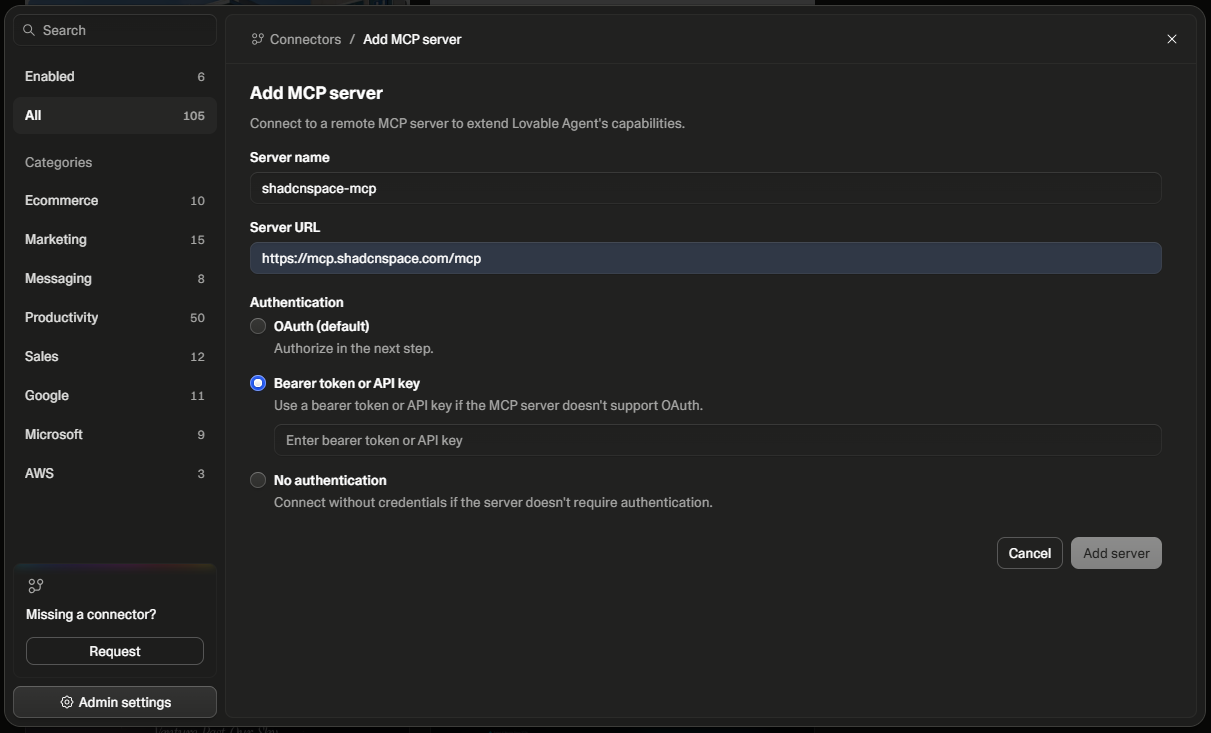
 Configure Lovable
Lovable supports Bearer token authentication for MCP servers.
| Field | Value |
|---|---|
| Server name | ShadcnSpace MCP |
| Server URL | https://mcp.shadcnspace.com/mcp |
| Authentication | Bearer token or API key |
| Token | [email protected]:your-license-key |
Setup Steps:
- Open your Lovable project
- Click the Settings icon → Connectors
- Click Add MCP server
- Fill in the form fields as shown in the table
- Click Add server
- You should see Connected ✅
Setup Form Reference:
How the agent will use it:
Once connected, ask Lovable to add a UI block: "Add a hero section using ShadcnSpace". The agent will automatically search for the right block, fetch the install command with your credentials embedded, and run it — no components.json editing required.
Pro tip: MCP works best when combined with the Shadcn CLI. Use MCP for exploration and generation, then refine code locally.
Using Shadcn Space with MCP
Once configured, you can interact with Shadcn Space using prompts inside your editor.
- Ask for a specific component or block variant
- Request changes to layout, spacing, or styles
- Generate pages using Shadcn Space building blocks
- Refine output iteratively with follow-up prompts
Available MCP Tools
These tools are exposed to your IDE through the Model Context Protocol (MCP). They allow the AI to fetch, install, and compose Shadcn Space components directly inside your project.
| Tool | Description |
|---|---|
listCategoriesNew | Returns all 14 block categories (hero, features, pricing, testimonials, faq, cta, header, footer, stats, forms, content, ecommerce, ai, widgets) with live counts of total, free, and PRO blocks. |
| listBlocks | Lists blocks with license info (isPro). Supports filtering by category and license type (all, free, pro). |
listFreeBlocksNew | Lists only 100% free Shadcn Space blocks that do not require any license. Supports optional category and keyword filters. |
| listComponents | Lists base UI components with search query and license filter (all, free, pro). |
| getBlockInstall | Returns official installation command, component export name, import path, JSX example, style options (base / radix), package manager commands, and license requirements for a specific block. |
| searchBlocks | Search Shadcn Space blocks using keywords or tags, category filter, and optional freeOnly filter. |
| listInstalledBlocks | Lists all blocks that are currently installed in the project and gets their files. |
| listPages | Provides a complete list of all Shadcn Space full pages. |
| getPageInstall | Returns official installation command, export name, import path, usage example, and style options for a specific full page. |
| searchPages | Search Shadcn Space full pages using keywords or tags. |
| listInstalledPages | Lists all pages currently installed in the project. |
getLandingPageGuidelinesNew | Comprehensive UI/UX landing page architecture: recommended section sequence (Hero [with built-in navbar] → Logos → Features → Testimonials → Pricing → FAQ → CTA → Footer), container standards, and vertical spacing cadence. |
handleErrorNew | Self-healing diagnostic tool for resolving license errors, missing components.json, component not found, and CLI installation failures with exact recovery steps. |
| get_audit_checklist | Returns strict workflow rules and guidelines for AI agents: style check (base / radix), package manager detection, license handling, and navbar deduplication. |
Note: The MCP server is free to use with all available free blocks. With a PRO plan, it works most effectively by unlocking access to all premium blocks, full-page templates, and automatic installs.
Available Prompts
Prompts are human-friendly commands that map to MCP tools. They usually appear as slash commands or natural language actions in your IDE’s AI chat.
| Prompt | Arguments | What happens |
|---|---|---|
build-landing-pageNew | topic (string), style ("base" | "radix", optional) | Step-by-step guidance for an AI agent to architect and assemble a complete, high-converting marketing landing page following optimal section flow and container standards. |
add-hero-sectionNew | topic (string) | Finds, installs, and integrates a high-impact hero block (with built-in navbar) into an existing page. |
add-pricing-sectionNew | topic (string) | Adds a modern multi-tier pricing section with monthly/annual billing toggles and clean integration code. |
add-feature-gridNew | topic (string) | Adds a feature showcase or bento grid section to highlight key capabilities. |
create-ui | description (string) | General prompt to architect a full UI page using Shadcn Space blocks. |
search | topic (string) | Finds specific UI blocks or components by topic, name, category, or intent. |
customization-guidelines | none | Defines which parts of installed blocks can be safely modified (text and labels only, preserving JSX layout and logic). |
Example Usage
These examples show how MCP understands intent and translates it into real component installs and UI composition.
“Show me all free hero blocks available in Shadcn Space”
“Build a complete SaaS landing page for an AI productivity app using hero, bento features, testimonials, pricing, and FAQ”
“Give me the install command and import statement for pricing-01 in base style”
“What categories of blocks are available in Shadcn Space?”
“Add download-banner block to my project”
Limitations
- Generated code may require manual refinement
- Advanced custom animations may not be inferred correctly
- Editor support depends on MCP compatibility
- Works with free blocks; Pro components require valid credentials
Best Practices
Pro tip: The MCP server is free to use with all free blocks. With a PRO plan, it works most effectively to install full pages and premium components directly into your codebase.
- Be specific in prompts (component type, layout, behavior)
- Generate small pieces instead of entire pages at once
- Validate accessibility and responsiveness
- Commit generated code after review