How to use Shadcn Space Builder ?
The Builder is a visual drag-and-drop editor that allows you to create and customize pages without writing code. You can add components, edit content, preview changes, and export your project directly from the builder interface.
What you can do
- Create and manage pages
- Add pre built blocks using drag and drop
- Edit text and images directly
- Preview your page before exporting
- Save your project changes
- Export the generated project files
Builder Interface
The builder interface is divided into several sections that help you design and manage your pages efficiently.
- Canvas : The canvas is the main workspace where you build your page. All components that you add will appear in this area.
- Components Sidebar : The sidebar contains available components. You can drag and drop them into the canvas to build your layout.
- Toolbar : The toolbar provides actions such as saving the project, previewing the page, exporting the project, and toggling edit mode.
- Pages Panel : The pages panel allows you to manage pages in your project. You can create, rename, and delete pages from here.
Working With Components
Components are the building blocks used to design your page. You can add, move, edit, and remove components directly inside the builder.
Add a Component
You can add new components by dragging them from the block library sidebar into the canvas.
- Open the block library sidebar.
- Drag a block.
- Drop it onto the canvas.
Edit Text
Text inside components can be edited directly in the canvas.
- Click on the text you want to edit.
- Start typing to change the content.
- Your changes will update instantly.
Move a Component
Components can be reordered inside the canvas using the arrow controls. These buttons allow you to move a component up or down within the page layout.
- Select the component.
- Click the arrow to move the component up.
- Click the arrow to move the component down.
Delete a Component
If a component is no longer needed, it can be removed from the page.
- Select the component.
- Click the delete option.
- The component will be removed from the canvas.
Pages Management
The builder allows you to manage multiple pages within a project. You can create new pages, switch between them, rename them, or delete pages you no longer need.
Manage Pages
- Open the Pages Panel.
- Click Add Page to create a new page.
- Select a page to switch and edit it.
- Rename a page if needed.
- Delete pages that are no longer required.
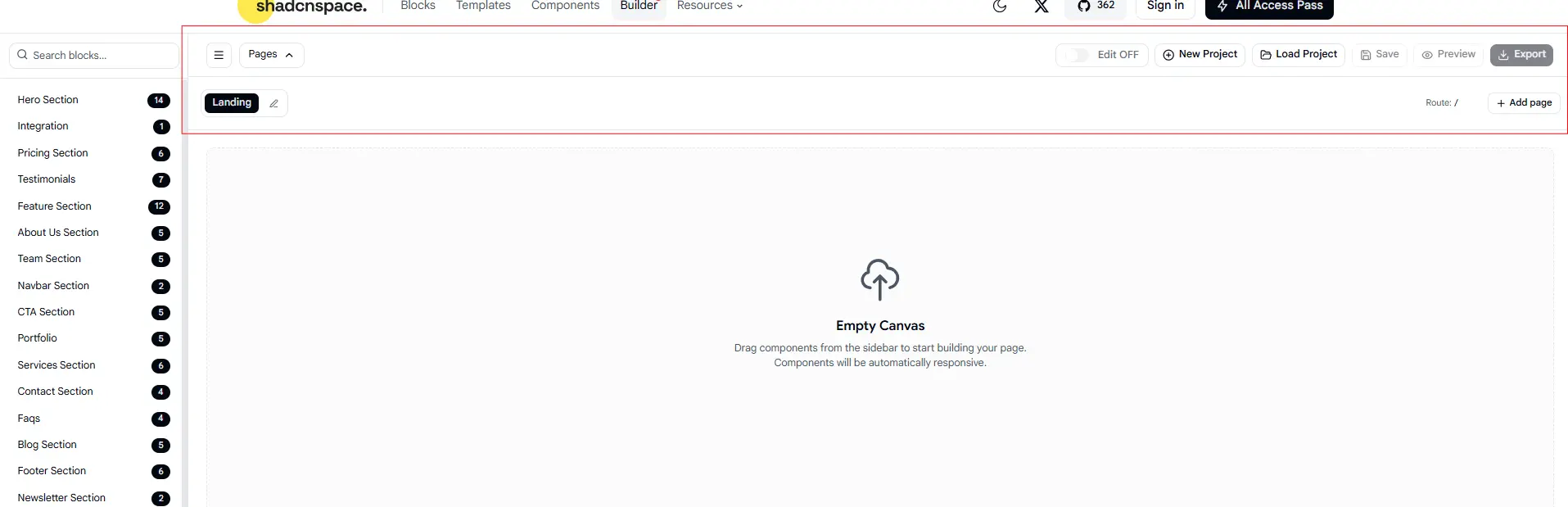
Creating, switching, renaming, and deleting pages from the pages panel.
Edit Mode
Edit Mode controls whether the page can be modified inside the builder. When Edit Mode is enabled, you can add, move, and edit components. When it is disabled, the page behaves like a preview.
Edit Mode ON
- Components can be edited.
- Drag and drop is enabled.
- Editing controls and tooltips are visible.
Edit Mode OFF
- Editing is disabled.
- The page behaves like a preview.
- No editing controls are shown.
Toggling Edit Mode to switch between editing and preview behavior.
Save Project
Saving stores the latest changes you make in the builder. This allows you to continue working on your project later.
If you clear your browser storage, cache, or switch browsers/devices, your saved projects will be permanently lost.
How to Save
- Make changes to your page.
- Click the Save button in the toolbar.
- Your latest changes will be stored in the browser.
Saving stores the project locally in your browser.
Preview Page
Preview mode allows you to view your project as a real website. When you open preview, the page will open in a new browser tab so you can interact with it without affecting the builder.
How to Preview
- Click the Preview button in the toolbar.
- A new browser tab will open.
- Your page will load in preview mode.
- Use the page selector to navigate between pages.
- Return to the builder tab to continue editing.
Preview opens your project in a new tab where you can navigate between pages.
Export Project
Export allows you to download the generated project files so you can use them outside the builder.
How to Export
- Click the Export button in the toolbar.
- If you are not signed in, you will be prompted to log in.
- After signing in, the builder will generate your project files.
- The files will be downloaded to your computer.
Exporting generates and downloads the project files.
How to Use Pro Blocks in the Builder
The builder includes both free and Pro components. Pro blocks provide advanced UI sections and layouts, but require an active Shadcnspace plan to use.
Using Pro Blocks
- Open the components panel.
- Select a block marked as Upgrade to Pro.
- If you are not signed in, you will be asked to log in.
- If you do not have an active plan, a message will appear with an option to purchase a plan from Shadcnspace.
- If you choose not to purchase a plan, the block will remain locked and cannot be added to your page.
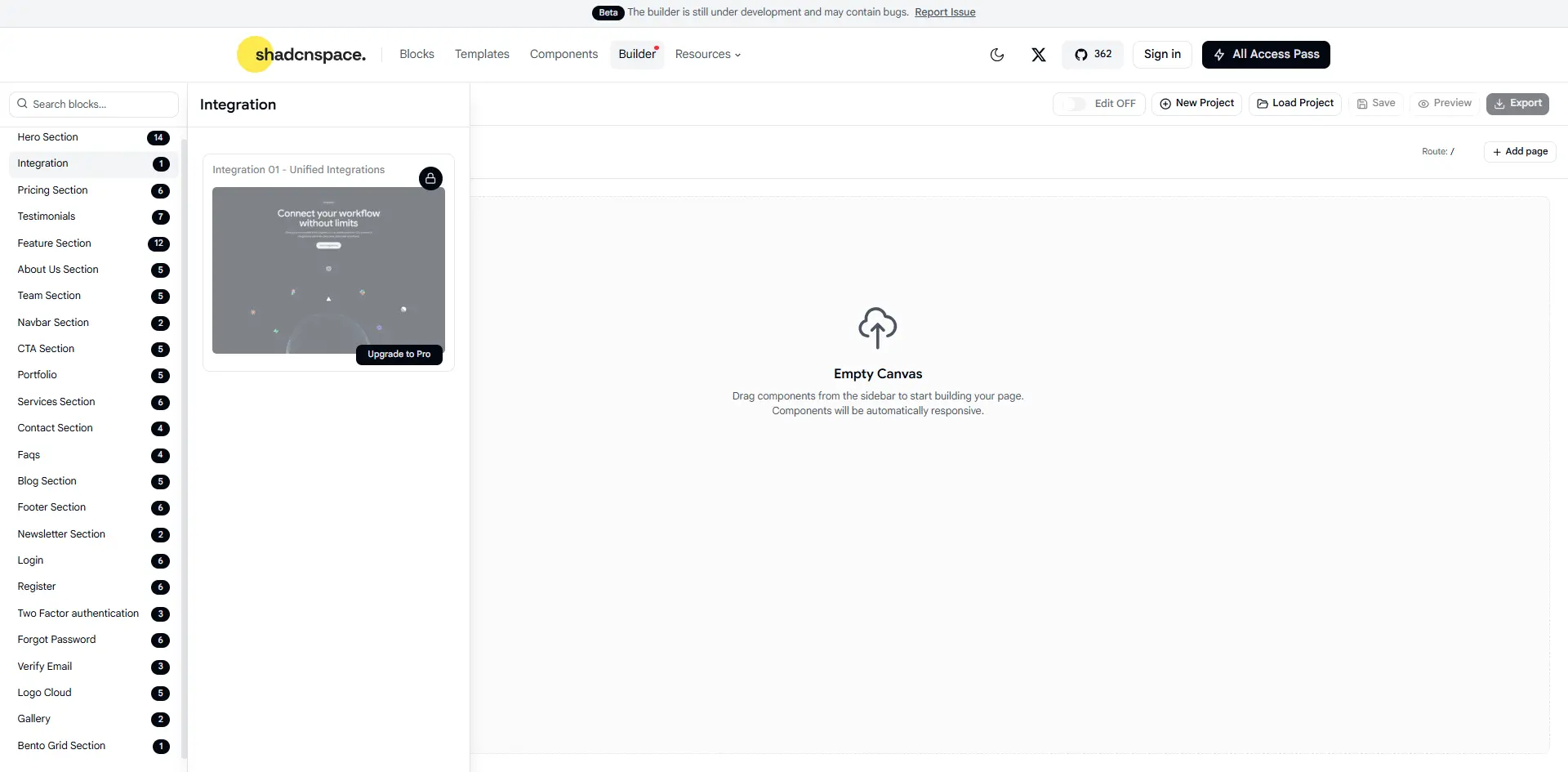
Pro blocks remain locked unless you have an active Shadcnspace plan.